App-Free Notifications: Waiter Call Alerts on Android & iPhone
You don't need to install an app to receive waiter and bill call notifications. This step-by-step guide shows how to turn on panel notifications with a single tap on Android, and how to enable them on iPhone by saving the page with "Add to Home Screen". Once set up, calls reach your phone even with the screen off.
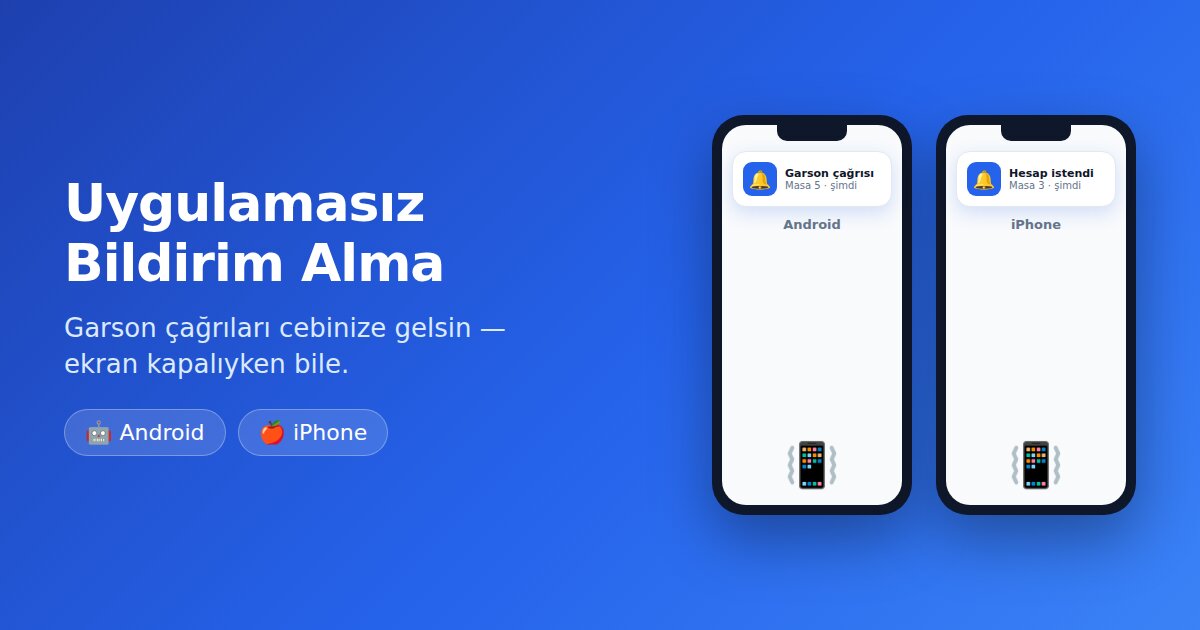
When a customer taps "Call Waiter" from the QR menu at their table, you want it to reach your phone instantly — right in your pocket, even with the screen off. With QR Menu Link, you don't need to install any app for this: the admin panel can send a system notification straight to your phone. In this guide we walk you through how to enable it, step by step, for both Android and iPhone.
Note: For the most comfortable experience, you can also install our QRMenuLink Staff app — available on Google Play and the App Store — with audio alerts, one-tap "Handled" and menu management all in one place. The method below is the web-based alternative that requires no installation at all.

Turning on notifications on Android (Chrome)
On Android it takes just two taps:
- Open qrmenulink.net/panel in your phone's browser (Chrome is recommended) and sign in to your account.
- Open the Service Calls page from the left menu. In the "Enable notifications" box at the top, tap Enable.
- In Chrome's permission prompt, choose Allow. That's it.
From now on, calls arrive as notifications on your phone even when the browser is closed and the screen is locked. If you like, you can also use the panel like an app: from the Chrome menu (⋮), choose "Add to Home screen" — an icon with the blue QR logo appears on your home screen and opens in full screen.
Turning on notifications on iPhone and iPad (Safari)
Apple only allows web notifications for web apps that have been added to the home screen (iOS 16.4 and later). So there's one extra step on iPhone — but it still takes less than a minute:
- Open qrmenulink.net/panel in Safari and sign in.
- Tap the Share button in the bottom bar (the square with an upward arrow).
- Choose "Add to Home Screen" from the list and tap Add. The QRMenuLink icon appears on your home screen.
- From now on, open the panel from this home screen icon rather than from Safari.
- On the Service Calls page, tap Enable in the "Enable notifications" box and tap Allow when iOS asks for permission.
That's all. Calls now arrive on your iPhone just like a normal app notification: they show on the lock screen, play a sound, and tapping them opens the call list directly.
Frequently asked questions
Does it really work when the screen is off?
Yes. Notifications don't go to the browser tab — they go to the phone's notification system (Google's infrastructure on Android, Apple's on iPhone). Even when the panel isn't open and your phone is locked in your pocket, you still get the notification.
I can't see the "Enable notifications" box on iPhone
Make sure you opened the panel from the icon you added to the home screen, not from a Safari tab. Apple only grants notification permission to apps opened this way. Your iOS version must be 16.4 or later.
Notifications aren't coming through — what should I do?
- Make sure your phone's Focus / Do Not Disturb mode is turned off.
- Check that QRMenuLink's notification permission is enabled under Settings → Notifications.
- In the panel, verify that the push notification option is turned on under Settings → Service Calls.
- On iPhone, if you deleted and re-added the home screen icon, you'll need to enable notifications again as well.
Can more than one person receive notifications?
Yes. Every user linked to your restaurant account can follow the same steps on their own phone; calls go out to everyone at once, and whoever is free first handles it.
Conclusion
You don't have to visit an app store for waiter call notifications: two taps on Android, "Add to Home Screen" plus one tap on iPhone. You'll never miss a call, even with your phone in your pocket. Those who want more can also add audio alerts and menu management with the QRMenuLink Staff app (Google Play · App Store).