Design Your Own Table QR Sheet — No Extra App Needed
You can design your table QR sheet right inside the app, without Canva or Photoshop. Pick one of the ready-made cafe and restaurant templates, add your logo and colours, and a separate QR code is generated for every table automatically. When you're done, download a single PDF in one click or bulk-download sheets for all tables.
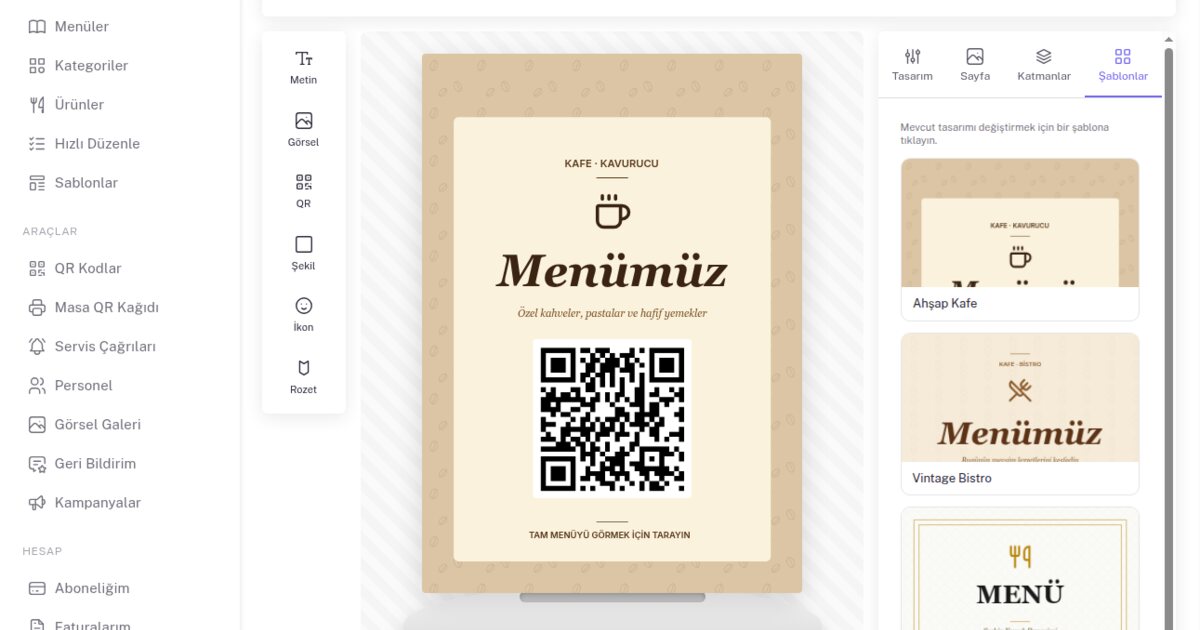
You have built your QR menu, but what do you actually put on the table? This is where most businesses get stuck: they assume they need to drop the QR code into a design program and build a proper stand with a background, a logo and a "scan for menu" label. With QR Menu Link, you don't need a separate program for this step. The Table QR Sheet Designer comes built into the panel, together with your menu's QR code. In this post we briefly explain how it works.
The design panel comes with your menu
Without wrestling with Canva, Photoshop or a print-shop designer, you open the Table QR Sheet screen under the Tools section in your admin panel, pick a ready-made template and get a print-ready stand right away. The QR code is automatically linked to your menu; you don't need to generate a separate QR elsewhere and paste it onto an image. It all comes together in a few minutes, in the same panel where you built your menu.
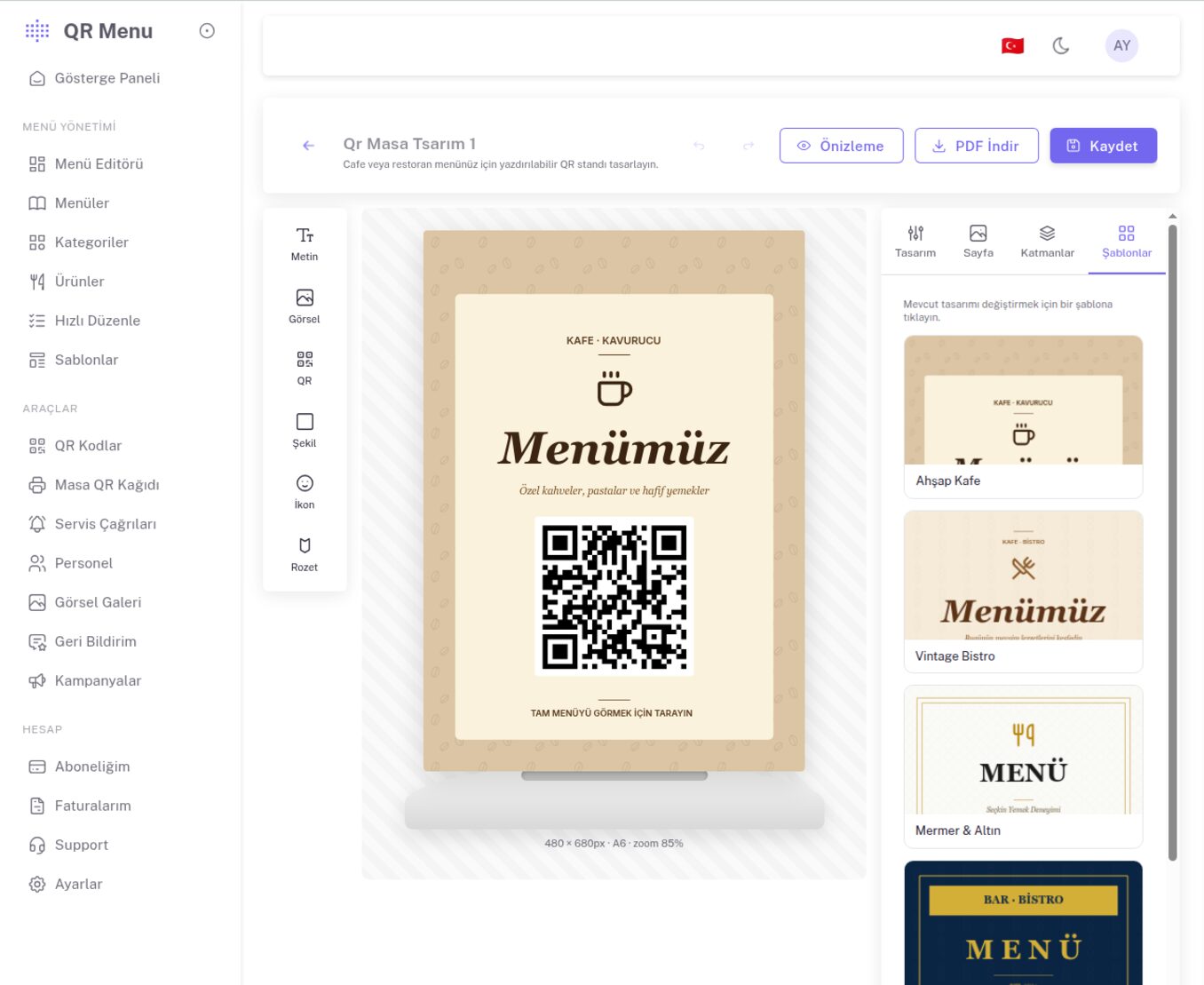
Ready-made cafe and restaurant templates
You don't have to start from scratch. You begin with a ready-made template that suits your business style and adjust it from there:
- Wooden Cafe — coffee-bean pattern in warm kraft tones; for coffee shops and boutique cafes
- Vintage Bistro — nostalgic, with an elegant serif heading
- Marble & Gold — marble-textured with a gold frame, for upscale restaurants
- Bar & Bistro — a dark-toned, high-contrast design suited to nightlife venues
After choosing a template, you can change the heading, subtitle, colors and background to match your restaurant's identity.
Place elements by dragging
On the design canvas you add elements from the toolbar on the left: text (heading, tagline), image (logo or cover), QR, shape, icon and badge. You position elements by dragging them, resize them and arrange them in layers. Everything a simple design editor does comes ready-made for exactly the sheet you'll put on the table.
A dedicated QR per table and bulk download
If a single menu QR isn't enough, you can generate a separate QR for each table. That way you can track how many scans come from which table and match service calls to the table. Once you've built one design, you can duplicate it and adapt it for every table, then download them all at once as a ZIP and send them to the print shop.
Download as PDF and print directly
When your design is done, you just click Download PDF. The sheet is exported in standard print sizes such as A6 and A5, with the margins set correctly; it prints cleanly from a home printer or a print shop alike. Because the QR code stays the same even when prices or menu content change, you never have to reprint the sheet.
Conclusion
You don't need a separate design tool, an extra fee or a learning curve for the QR stand you'll put on the table. In the same panel where you built your menu, in just a few minutes, you get an on-brand, print-ready table sheet. With multi-table support and bulk PDF download, it's a few minutes' work even for large venues.
To try it: open a 6-month free account, build your menu, and design and download your first table sheet.